브로드캐스터 작성하기 (C++)
목표: 로봇의 상태를 tf2에 브로드캐스트하는 방법을 배웁니다.
배경
다음 두 개의 튜토리얼에서는 tf2 소개 튜토리얼 에서 소개한 데모를 복제하기 위한 코드를 작성합니다. 이후의 튜토리얼에서는 변환 조회 및 시간 여행과 같은 더 고급 tf2 기능을 사용하여 데모를 확장하는 데 중점을 둡니다.
필수 준비 사항
이 튜토리얼은 ROS 2에 대한 작업 지식과 이전에 작성한 tf2 소개 튜토리얼 및 tf2 정적 브로드캐스터 튜토리얼 (C++) 을 완료한 것으로 가정합니다.
우리는 마지막 튜토리얼에서 만든 learning_tf2_cpp 패키지를 다시 사용할 것입니다.
또한 이전 튜토리얼에서는 작업 공간을 생성하는 방법 과 패키지를 생성하는 방법 을 배웠습니다.
작업
1 브로드캐스터 노드 작성
먼저 소스 파일을 작성합니다.
이전 튜토리얼에서 생성한 learning_tf2_cpp 패키지로 이동하세요.
src 디렉토리에서 다음 명령을 입력하여 예제 브로드캐스터 코드를 다운로드합니다.
wget https://raw.githubusercontent.com/ros/geometry_tutorials/ros2/turtle_tf2_cpp/src/turtle_tf2_broadcaster.cpp
선호하는 텍스트 편집기를 사용하여 파일을 엽니다.
#include <functional>
#include <memory>
#include <sstream>
#include <string>

#include "geometry_msgs/msg/transform_stamped.hpp"
#include "rclcpp/rclcpp.hpp"
#include "tf2/LinearMath/Quaternion.h"
#include "tf2_ros/transform_broadcaster.h"
#include "turtlesim/msg/pose.hpp"

class FramePublisher : public rclcpp::Node
{
public:
  FramePublisher()
  : Node("turtle_tf2_frame_publisher")
  {
    // Declare and acquire `turtlename` parameter
    turtlename_ = this->declare_parameter<std::string>("turtlename", "turtle");

    // Initialize the transform broadcaster
    tf_broadcaster_ =
      std::make_unique<tf2_ros::TransformBroadcaster>(*this);

    // Subscribe to a turtle{1}{2}/pose topic and call handle_turtle_pose
    // callback function on each message
    std::ostringstream stream;
    stream << "/" << turtlename_.c_str() << "/pose";
    std::string topic_name = stream.str();

    subscription_ = this->create_subscription<turtlesim::msg::Pose>(
      topic_name, 10,
      std::bind(&FramePublisher::handle_turtle_pose, this, std::placeholders::_1));
  }

private:
  void handle_turtle_pose(const std::shared_ptr<turtlesim::msg::Pose> msg)
  {
    geometry_msgs::msg::TransformStamped t;

    // Read message content and assign it to
    // corresponding tf variables
    t.header.stamp = this->get_clock()->now();
    t.header.frame_id = "world";
    t.child_frame_id = turtlename_.c_str();

    // Turtle only exists in 2D, thus we get x and y translation
    // coordinates from the message and set the z coordinate to 0
    t.transform.translation.x = msg->x;
    t.transform.translation.y = msg->y;
    t.transform.translation.z = 0.0;

    // For the same reason, turtle can only rotate around one axis
    // and this why we set rotation in x and y to 0 and obtain
    // rotation in z axis from the message
    tf2::Quaternion q;
    q.setRPY(0, 0, msg->theta);
    t.transform.rotation.x = q.x();
    t.transform.rotation.y = q.y();
    t.transform.rotation.z = q.z();
    t.transform.rotation.w = q.w();

    // Send the transformation
    tf_broadcaster_->sendTransform(t);
  }

  rclcpp::Subscription<turtlesim::msg::Pose>::SharedPtr subscription_;
  std::unique_ptr<tf2_ros::TransformBroadcaster> tf_broadcaster_;
  std::string turtlename_;
};

int main(int argc, char * argv[])
{
  rclcpp::init(argc, argv);
  rclcpp::spin(std::make_shared<FramePublisher>());
  rclcpp::shutdown();
  return 0;
}
1.1 코드 검토
이제, 터틀 포즈를 tf2에 게시하는 관련 코드를 살펴보겠습니다.
먼저 하나의 매개변수인 turtlename 을 정의하고 얻습니다. 이는 거북이의 이름을 지정하는 매개변수로, 예를 들어 turtle1 또는 turtle2 등이 됩니다.
turtlename_ = this->declare_parameter<std::string>("turtlename", "turtle");
그 다음 노드는 주제 turtleX/pose 를 구독하고 매 수신 메시지마다 함수 handle_turtle_pose 를 실행합니다.
subscription_ = this->create_subscription<turtlesim::msg::Pose>(
  topic_name, 10,
  std::bind(&FramePublisher::handle_turtle_pose, this, _1));
이제 생성한 TransformStamped 객체를 만들고 적절한 메타데이터를 부여합니다.
게시되는 변환에 타임스탬프를 부여해야 하며, 현재 시간을
self.get_clock().now()라고 불러 현재 시간으로 스탬프를 찍을 것입니다. 그러면Node에서 사용하는 현재 시간이 반환됩니다.그런 다음 생성하려는 링크의 부모 프레임의 이름을 설정해야 합니다. 이 경우
world로 설정합니다.마지막으로 생성하려는 링크의 자식 노드의 이름을 설정해야 합니다. 이 경우 거북이 자체의 이름입니다.
거북이 포즈 메시지의 핸들러 함수는 이 거북이의 변환을 world 프레임에서 turtleX 프레임으로 변환하고 게시합니다.
geometry_msgs::msg::TransformStamped t;

// Read message content and assign it to
// corresponding tf variables
t.header.stamp = this->get_clock()->now();
t.header.frame_id = "world";
t.child_frame_id = turtlename_.c_str();
여기서 우리는 3D 거북이 포즈의 정보를 3D 변환으로 복사합니다.
// Turtle only exists in 2D, thus we get x and y translation
// coordinates from the message and set the z coordinate to 0
t.transform.translation.x = msg->x;
t.transform.translation.y = msg->y;
t.transform.translation.z = 0.0;

// For the same reason, turtle can only rotate around one axis
// and this why we set rotation in x and y to 0 and obtain
// rotation in z axis from the message
tf2::Quaternion q;
q.setRPY(0, 0, msg->theta);
t.transform.rotation.x = q.x();
t.transform.rotation.y = q.y();
t.transform.rotation.z = q.z();
t.transform.rotation.w = q.w();
마지막으로 구성한 변환을 TransformBroadcaster 의 sendTransform 메서드에 전달하여 방송합니다.
// Send the transformation
tf_broadcaster_->sendTransform(t);
1.2 CMakeLists.txt
CMakeLists.txt 파일로 이동하고, 나중에 ros2 run 과 함께 사용할 turtle_tf2_broadcaster 라는 실행 파일을 추가합니다.
add_executable(turtle_tf2_broadcaster src/turtle_tf2_broadcaster.cpp)
ament_target_dependencies(
    turtle_tf2_broadcaster
    geometry_msgs
    rclcpp
    tf2
    tf2_ros
    turtlesim
)
마지막으로 ros2 run 이 실행 파일을 찾을 수 있도록 install(TARGETS…) 섹션을 추가합니다.
install(TARGETS
    turtle_tf2_broadcaster
    DESTINATION lib/${PROJECT_NAME})
2 런치 파일 작성
이제 이 데모를 위한 런치 파일을 작성합니다.
텍스트 편집기를 사용하여 launch 폴더에 turtle_tf2_demo.launch.py 라는 새 파일을 만들고 다음 라인을 추가합니다.
from launch import LaunchDescription
from launch_ros.actions import Node


def generate_launch_description():
    return LaunchDescription([
        Node(
            package='turtlesim',
            executable='turtlesim_node',
            name='sim'
        ),
        Node(
            package='learning_tf2_cpp',
            executable='turtle_tf2_broadcaster',
            name='broadcaster1',
            parameters=[
                {'turtlename': 'turtle1'}
            ]
        ),
    ])
2.1 코드 검토
먼저 launch 및 launch_ros 패키지에서 필요한 모듈을 가져옵니다.
launch 는 일반적인 시작 프레임워크이며(ROS 2와 관련이 없음), 여기에서 import 한 launch_ros 에는 ROS 2 특정 기능이 포함되어 있습니다.
from launch import LaunchDescription
from launch_ros.actions import Node
이제 turtlesim 시뮬레이션을 시작하는 노드를 실행하고 turtle_tf2_broadcaster 노드를 사용하여 turtle1 상태를 tf2로 방송합니다.
Node(
    package='turtlesim',
    executable='turtlesim_node',
    name='sim'
),
Node(
    package='learning_tf2_cpp',
    executable='turtle_tf2_broadcaster',
    name='broadcaster1',
    parameters=[
        {'turtlename': 'turtle1'}
    ]
),
2.2 의존성 추가
launch 및 launch_ros 패키지를 import 한 코드에 해당하는 추가 필요한 종속성을 package.xml 파일에 추가합니다.
<exec_depend>launch</exec_depend>
<exec_depend>launch_ros</exec_depend>
코드를 실행할 때 추가 필요한 launch 및 launch_ros 종속성을 선언합니다.
파일을 저장하세요.
3 빌드
작업 공간의 루트에서 누락된 종속성을 확인하려면 rosdep 를 실행합니다.
rosdep install -i --from-path src --rosdistro humble -y
작업 공간의 루트에서 패키지를 빌드합니다.
colcon build --packages-select learning_tf2_cpp
새 터미널 창을 열고 작업 공간의 루트로 이동한 다음 설정 파일을 소스합니다.
. install/setup.bash
4 실행
이제 터틀심 시뮬레이션 노드와 turtle_tf2_broadcaster 노드를 시작하는 런치 파일을 실행하세요.
ros2 launch learning_tf2_cpp turtle_tf2_demo.launch.py
두 번째 터미널 창에서 다음 명령을 입력하세요.
ros2 run turtlesim turtle_teleop_key
이제 제어할 수 있는 한 마리의 터틀이 있는 터틀심 시뮬레이션을 볼 수 있습니다.
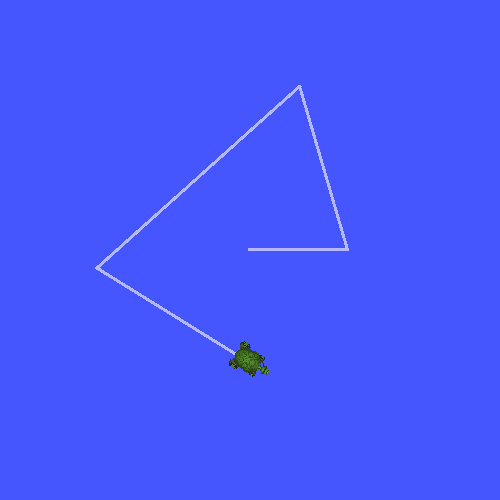
이제 tf2_echo 도구를 사용하여 터틀 포즈가 실제로 tf2에 브로드캐스트되는지 확인하세요.
ros2 run tf2_ros tf2_echo world turtle1
이것은 첫 번째 터틀의 포즈를 표시해야 합니다.
화살표 키를 사용하여 터틀 주위를 움직이면 (turtle_teleop_key 터미널 창이 아닌 시뮬레이터 창이 활성화되어 있는지 확인하세요) 콘솔 출력에서 다음과 유사한 내용을 볼 수 있습니다.
콘솔 출력에서 다음과 유사한 내용을 볼 수 있습니다.
At time 1625137663.912474878
- Translation: [5.276, 7.930, 0.000]
- Rotation: in Quaternion [0.000, 0.000, 0.934, -0.357]
At time 1625137664.950813527
- Translation: [3.750, 6.563, 0.000]
- Rotation: in Quaternion [0.000, 0.000, 0.934, -0.357]
At time 1625137665.906280726
- Translation: [2.320, 5.282, 0.000]
- Rotation: in Quaternion [0.000, 0.000, 0.934, -0.357]
At time 1625137666.850775673
- Translation: [2.153, 5.133, 0.000]
- Rotation: in Quaternion [0.000, 0.000, -0.365, 0.931]
world 와 turtle2 사이의 변화를 위해 tf2_echo 를 실행한다면, 두 번째 거북이는 아직 그곳에 없기 때문에 변화를 볼 수 없습니다.
그러나 다음 튜토리얼에서 두 번째 거북이를 추가하는 즉시 tf2에 turtle2 포즈가 방송됩니다.
요약
——-
이 튜토리얼에서는 로봇의 자세(거북의 위치와 방향)를 tf2로 방송하는 방법과 tf2_echo 도구를 사용하는 방법을 배웠습니다.
tf2로 방송되는 변환을 실제로 사용하려면 다음 튜토리얼에서 다음과 같이 tf2 청취자 를 생성해야 합니다.